
Items are the building blocks of every Cirrus assessment. They include the 20+ question types, plus Sections (groups of questions) and informational pages. Use this article to find your way around the items overview, add new items, import or export them, and use the question editor refreshed in 2025.
The items overview
Open a collection to land on its items overview. The overview lists every item in the collection that your collection role allows you to see.
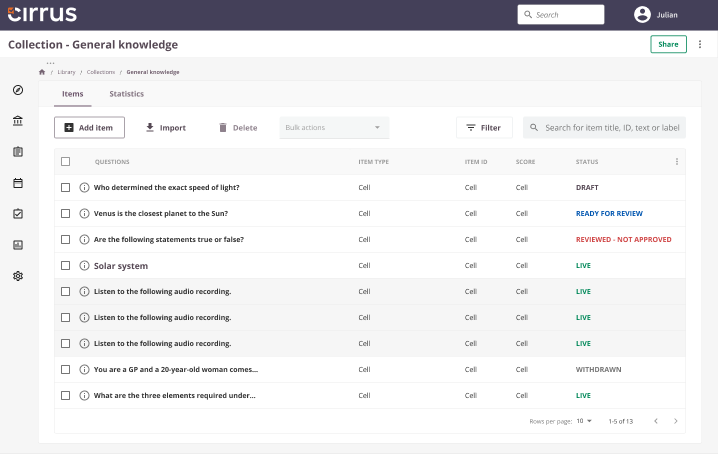
Action menu
- Add item to pick a question type. Cirrus lists every available type.
- Import to bring in items from another collection, an Excel file, an IMS QTI v2.1 file, an IMS QTI 2.1 TAO file, a Moodle file, or a SOWISO mathematical-question file.
- Delete to move ticked items to the collection's trash can.
- Bulk actions for ticked items: export to Excel or QTI v2.1, create copies, change status, change item purpose, add or remove topics, apply or remove labels.
Only items with status Live can be used in an assessment. Status transitions: Draft → Ready for review → Reviewed (approved or not approved) → Live → Withdrawn.
Columns and filters
Customise the columns:
- Select the i icon to see every available column.
- Select the three vertical dots on the column header bar to add or remove columns.
- Drag and drop to reorder columns.
Your column layout is saved against your account, so it persists across browsers and devices.
Apply filters from the filter row to narrow the list by topic, learning objective, status, type, or label.
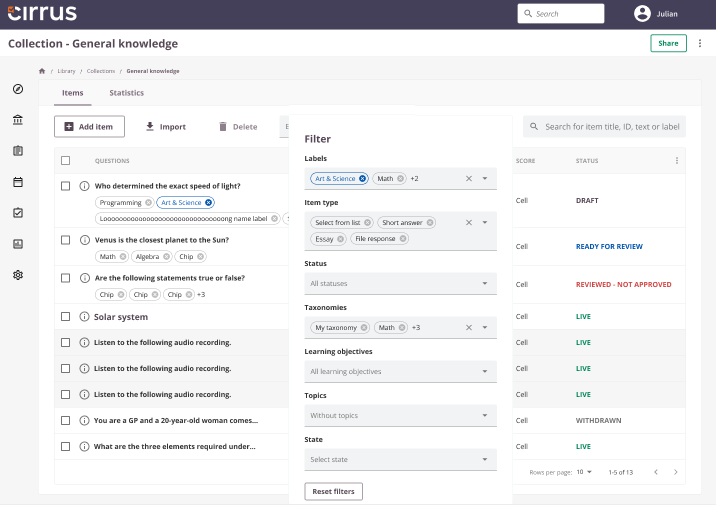
Hover any row to preview the item; select the row to open it.
Open an item
Select an item row to open it in the editor.
The editor was refreshed. Key changes:
- Sticky action bar: the save and preview buttons stay visible while you scroll.
- Tags is the default side panel: open straight into tagging without opening the Options Tab first.
- Options Tab removed: item-specific options now live in the right-hand panel.
- New preview: closer to the candidate-facing rendering, with side-by-side desktop and mobile views.
Where this item is used
The item info side panel and the Assessment form view both show Where used: every assessment that includes this item. Use it when you need to assess the impact of a proposed item change before saving.
Add an item
Select Add item and pick a question type. Cirrus opens an empty editor of that type.
Every item type has its own creation workflow. See the dedicated articles:
- Multiple choice
- Multiple response
- Either or
- Match, Extended match
- Hotspot, Drag and drop
- Order, Select from list
- Fill in the blank
- Short answer, Essay, File response
- Numeric, Mathematical question
- Comprehensive integrated puzzle
- Financial statement
- Programming
- Extended multiple choice
Share, collection settings, manage topics and labels
- Share (top right) lets you share the collection with others. See How to share your collection.
- The three-dot menu next to Share gives access to:
- Collection settings for the collection title, learning objectives, taxonomy, and item-ID prefix. Available controls depend on your collection role.
- Manage topics to edit topic titles or remove topics. The dialog shows how many items use each topic. See Working with topics.
- Manage labels for the collection's labels. See Labels in the library.
Sort by first-revision creator
You can sort the library list by the user who created the first revision of each item, not just the last editor. Useful when you want to attribute items to their original author even after edits by others.