
Use this guide to create an assessment in Cirrus.
Create an assessment
- Go to Assessments in the main menu.
- The Assessment overview page opens.
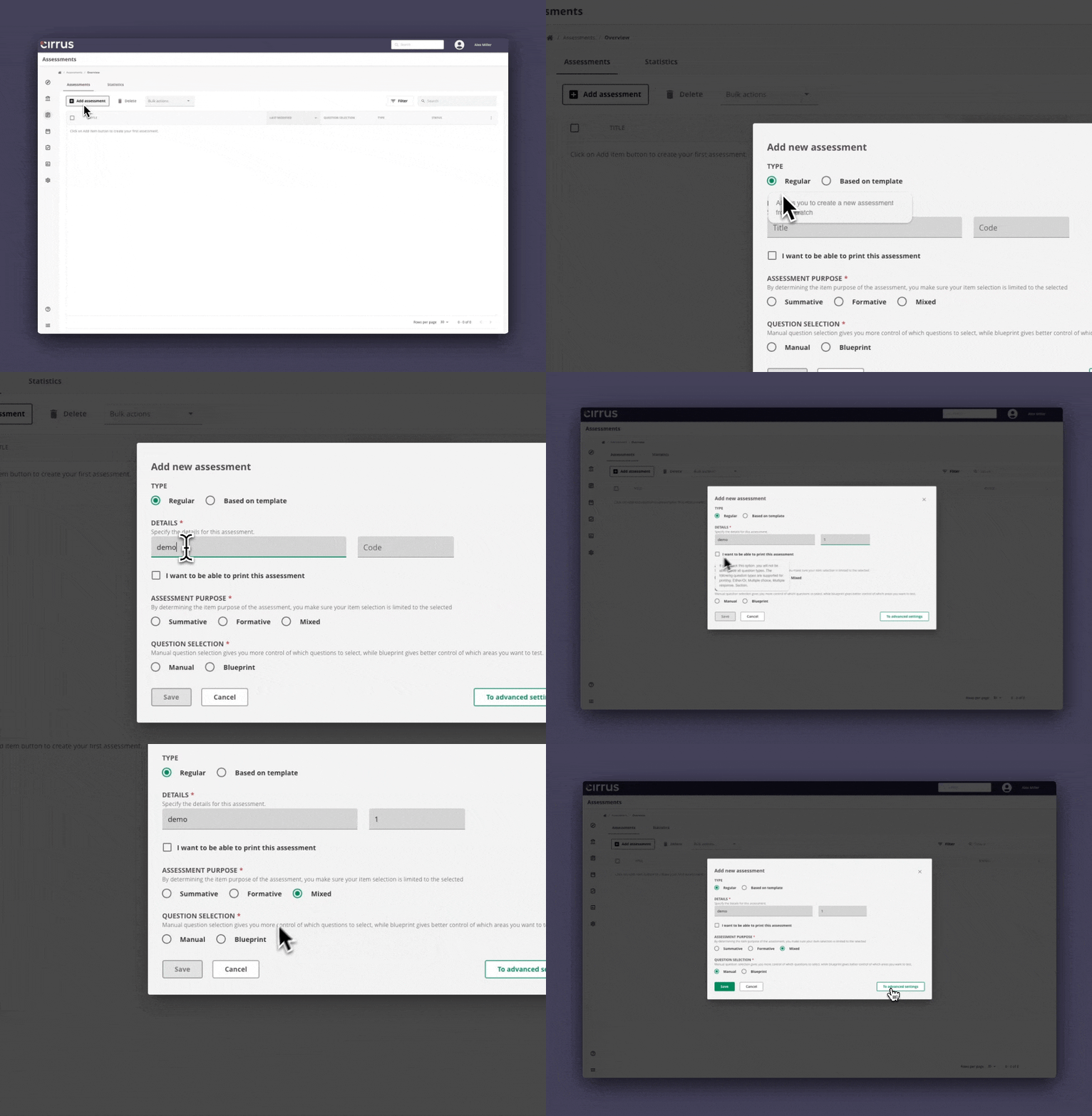
- Click +Add assessment. A dialog window opens with basic settings for your assessment.
Assessment settings
- Create a new assessment, or select a template (a previously created assessment) to start from.
- Enter a title and code (numeric and/or alphanumeric).
- Choose Formative, Summative, or Mixed.
- Choose Manual question selection to select questions yourself, or Blueprint to have the system select questions based on learning objectives or taxonomy.
- Click Save to go to the assessment overview page, or continue to Advanced settings.
Advanced settings
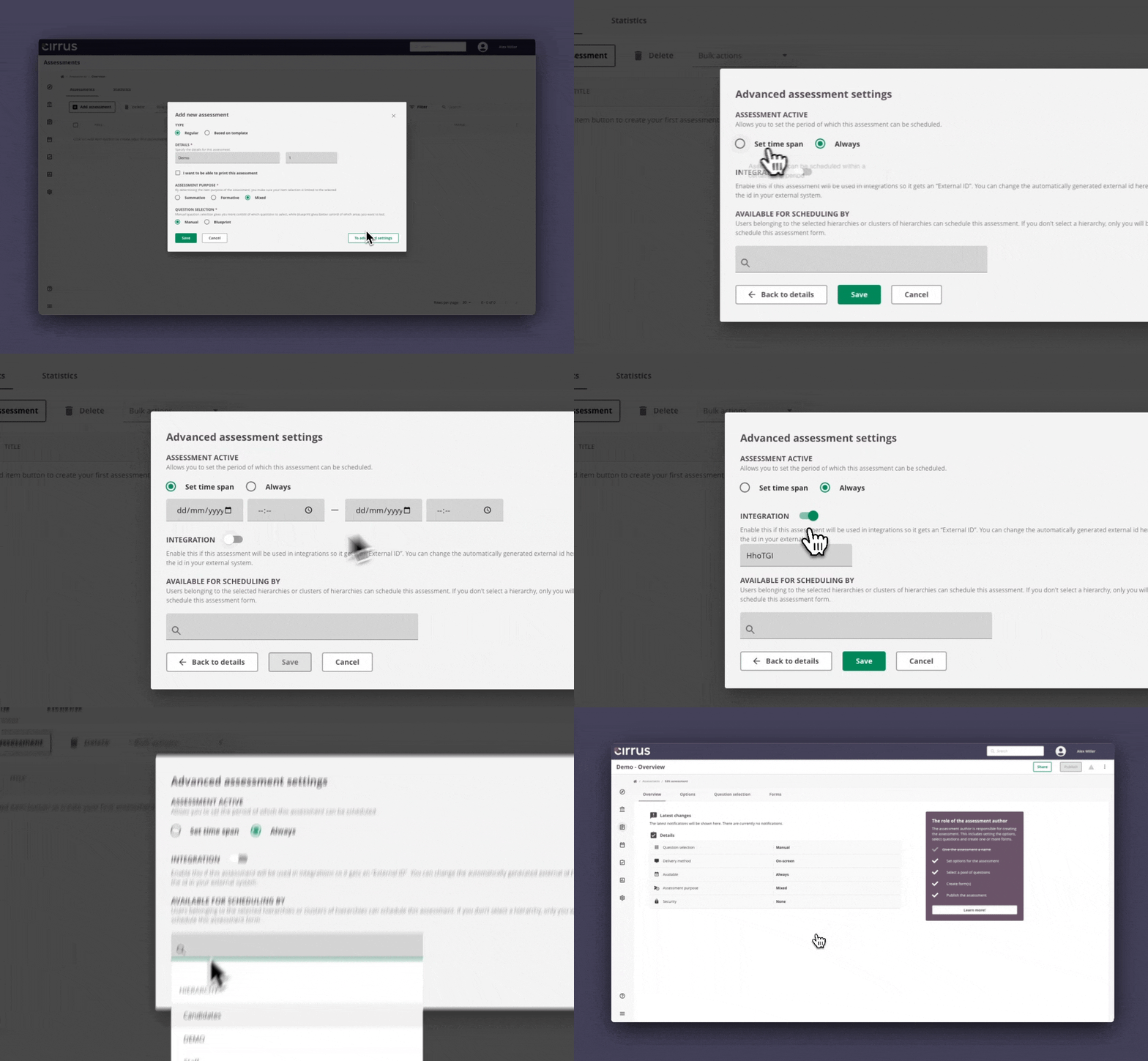
- Click To advanced settings.
- Set a Time span for this assessment, or choose Always to make it available for scheduling at any time.
- Enable the Integration toggle to generate an external ID for linking this assessment to an integration (optional).
- Select a hierarchy so colleagues in that group can also schedule this assessment (optional).
- Click Save to go to the assessment overview page.
Adjusting assessment settings
You can adjust these settings at any time.
- Click the three-dot menu in the top right of the overview page.
- Select Settings.
- A dialog window opens for you to edit the settings.
Assessment dashboard
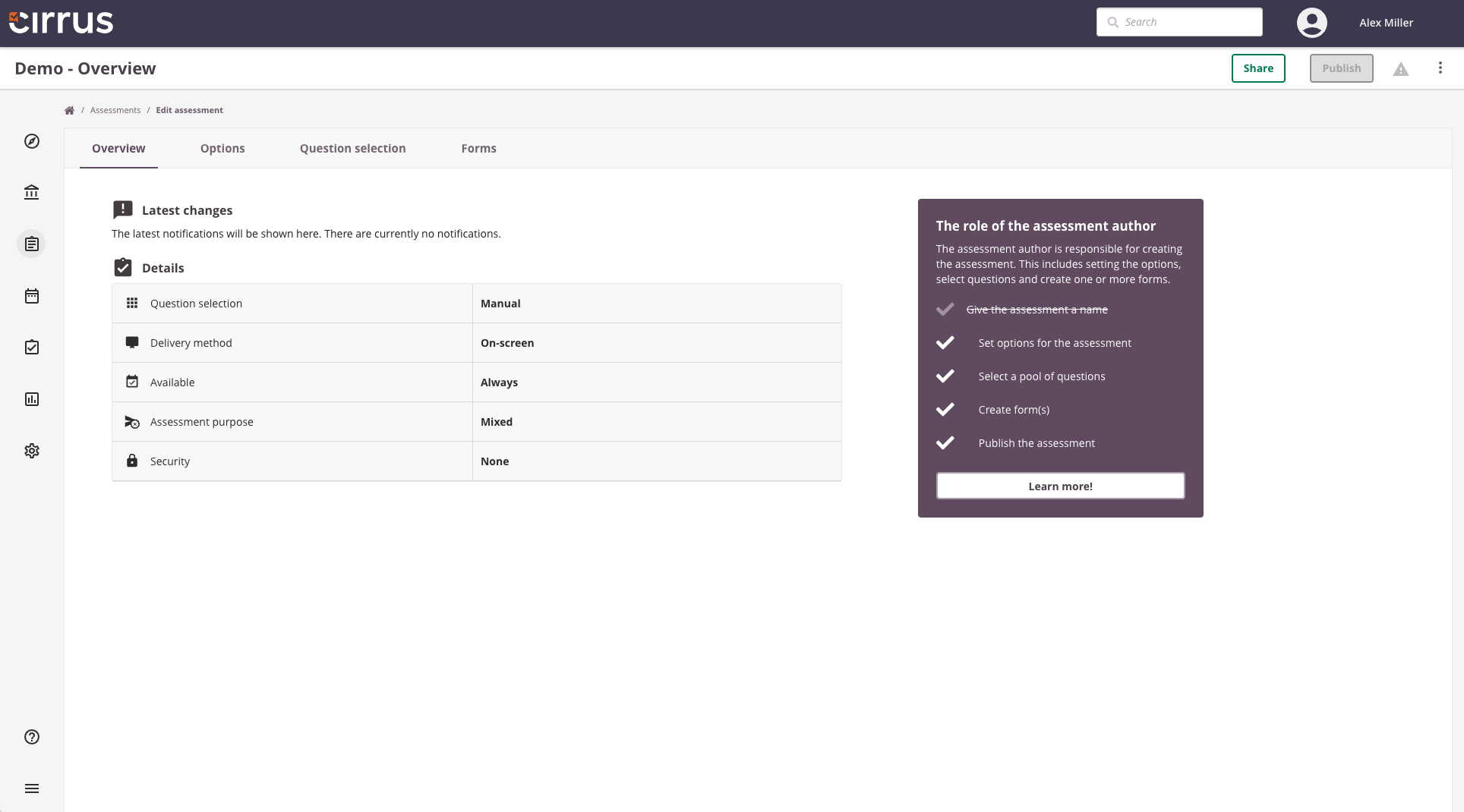
You will arrive at the Assessment Dashboard.
Assessment overview settings
The overview shows the key settings entered when creating the assessment.
Assessment options
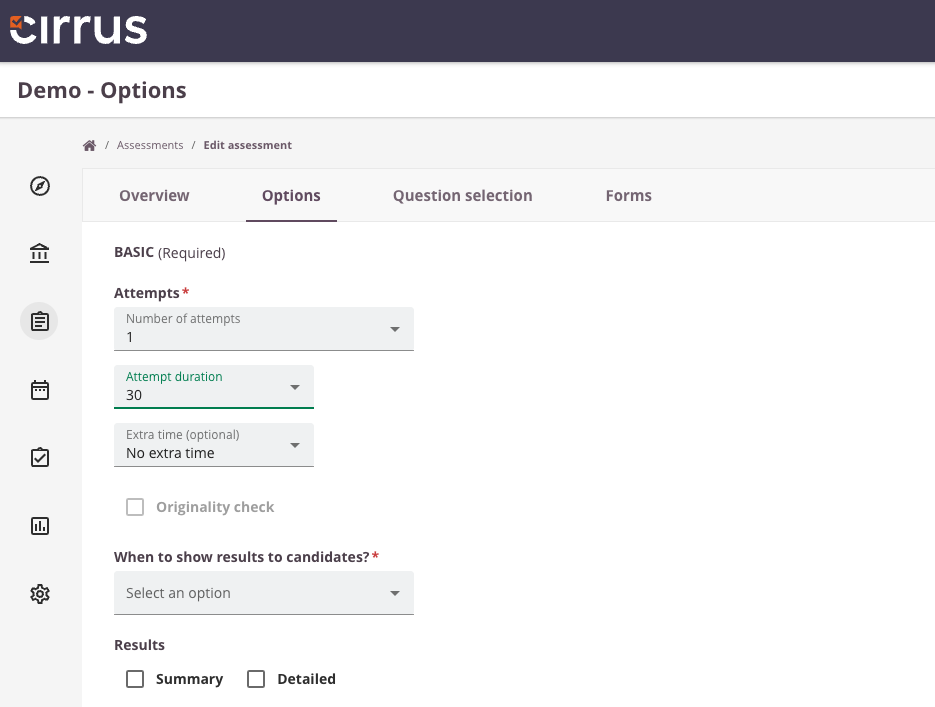
- Go to the Options tab to configure your assessment. See Assessment Options for details.
- Set at least the following:
a. Number of attempts
b. Attempt duration
c. Extra time for eligible candidates (optional)
d. When to show results to candidates - Proceed to Question selection.
Question selection
- The Question selection tab lists all items created or shared with you.
- Use the filter to find specific questions if needed.
- Select the questions you want to use and click Include items.
- The selected questions are ready for the next step: Forms.
Blueprint
- If you chose Blueprint, compose the assessment on the Question selection tab based on Topics (simple template) or Learning objectives and Taxonomies (extended template).
- After setting up your blueprint matrix, proceed to Forms.
Forms
- Go to the Forms tab and click +Add form to compose the assessment. See Assessment Form Introduction for details.
- Choose how many questions from your selection to include in the assessment.
- Determine the form type: Fixed or Random.
- Add at least a Welcome page and a Finish page under Intro and Finish pages.
- View the questions and drag them into the required order if needed.
- Click Scale, choose an assessment scale, and save.
Publish your assessment
- Go to the Overview tab and verify all required steps are complete.
- Complete the final step: Publish to make the assessment available for scheduling.
- Choose Scheduler is assessor if the exam scheduler will also mark the exam, or Coordinator assigns assessors if a coordinator will set up a workflow with multiple assessors and moderators.
- Set the status to Live and publish the assessment.
- The assessment is now ready to be scheduled.