
In Step 4 on the Forms tab, build, preview, and publish your assessment form (the exam script seen by candidates).
Creating an Assessment Form
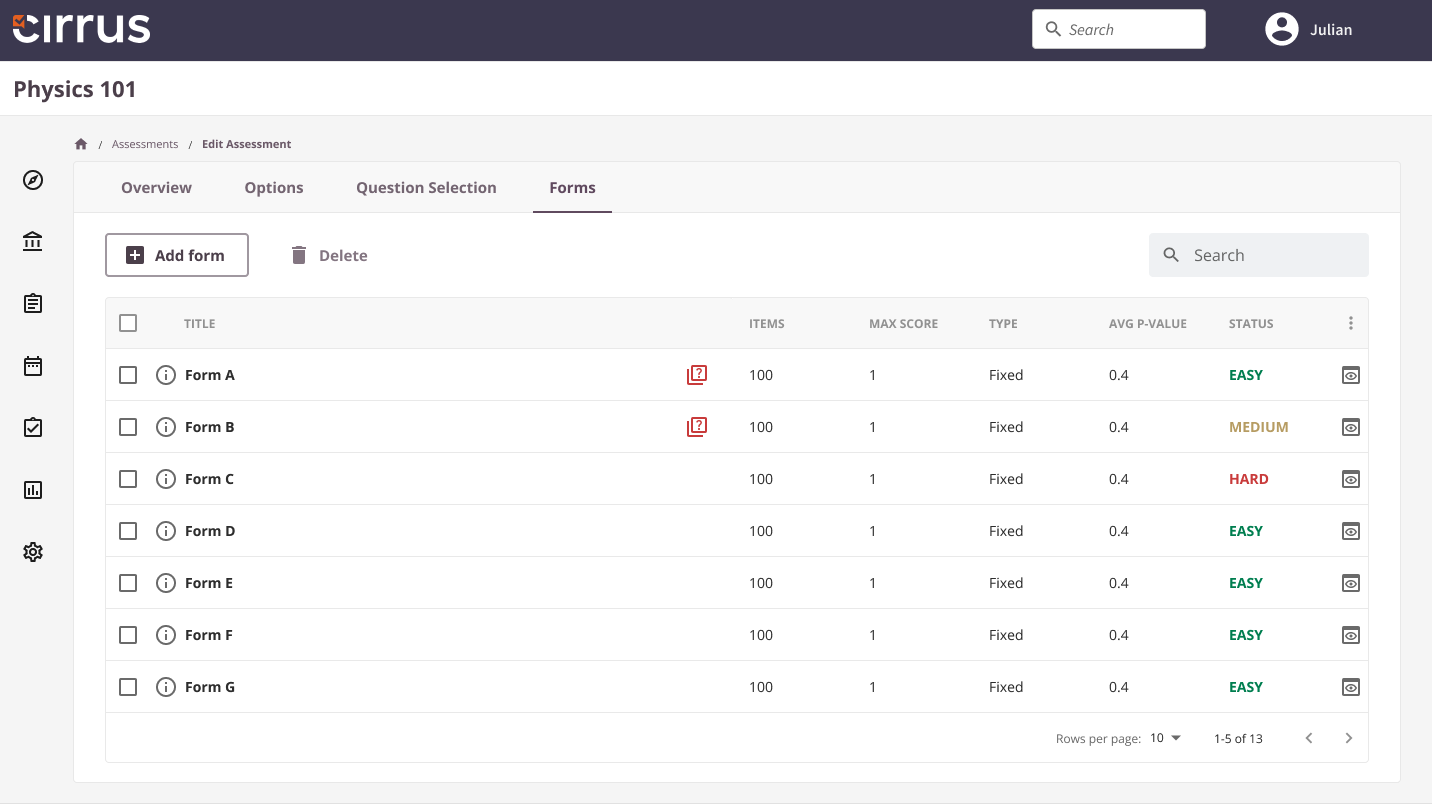
On the Forms tab:
- Click Add form to create a new form. Select the number of questions to use from the total available, and choose the assessment type: Fixed or Random/LOFT. See the sections below for details.
- Share, publish, and preview the assessment form from this screen.
Defining the assessment type: fixed or random/LOFT
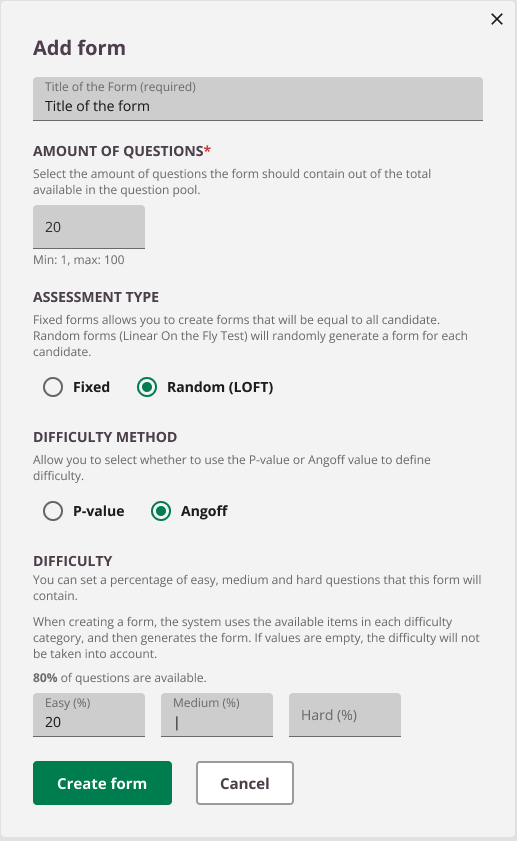
When creating a form, the Generate form modal presents two key choices:
1. Number of questions
Select how many questions to use from the total pool. For manually assembled assessments, this is typically all questions (for example, 50 out of 50). With a large pool, you can opt to use a subset (for example, 50 out of 200).
2. Fixed or Random
- Fixed: The assessment is generated in advance. All candidates receive the same set of questions. Multiple forms are supported.
- Random: Selects questions using Linear On the Fly Test generation (LOFT). Each candidate receives a unique set of questions.
Examples:
Fixed 50 out of 100 means all candidates receive the same 50 questions. Whether the order is randomised depends on the Assessment Option "Display questions in random order".
Random 50 out of 100 means each candidate receives a different set of 50 questions from the pool of 100, in a unique order.
Difficulty method
Validating assessments using psychometric data is an important part of the assessment process. Cirrus uses psychometric data to help validate assessments.
The two main methods are P-values and Angoff values. Both measure item and assessment difficulty on a scale from 0 (very hard) to 1 (very easy).
P-values are useful when items have already been used in previous assessments; Cirrus calculates them automatically each time an item is answered. However, for items that have never been used, there is no performance data. That is where Angoff values come in: a panel of subject matter experts manually sets the difficulty values.
When creating forms (fixed or random), you can define the weighting across the three difficulty levels (Easy, Medium, Hard). Before doing this:
- Ensure the difficulty thresholds are set in Admin.

- Ensure each item to be used has either a P-value or Angoff value. This can be verified on the Statistics tab within the collection.
The Difficulty method setting in the form lets you select whether the system uses P-values or Angoff values. If you do not want to use difficulty weighting, ignore these options.
Set the weighting between the three difficulty levels so that the total equals 100%. For example: 50% Easy and 50% Hard, or 20% Easy, 50% Medium, and 30% Hard.
Once satisfied, click Create form. The system creates a fixed or random form incorporating the specified difficulty weighting.
Tips for using difficulty levels
This feature gives you control over the difficulty of each form. For example, you can create an easy Form A and a difficult Form B for second attempts.
You can also allow the system to generate a unique set of questions for each candidate while ensuring the difficulty balance remains consistent. This helps prevent cheating and content exposure, as no two candidate assessments will be identical.