
During the last step you can divide the work among the available assessors and moderators.
How to get here:
- Go to Marking > Coordinator tab
- This will open the Coordinator overview page
- Click on an exam that needs a marking workflow (status: Assessor needed)
- Go to the Allocation tab.
Note: If you cannot see this, your role does not allow you to. Reach out to a System Admin of your organisation if you feel this is not correct.
How to allocate
Once you have assigned a pool of assessors to mark your assessment, you can allocate who will mark which candidate/question.
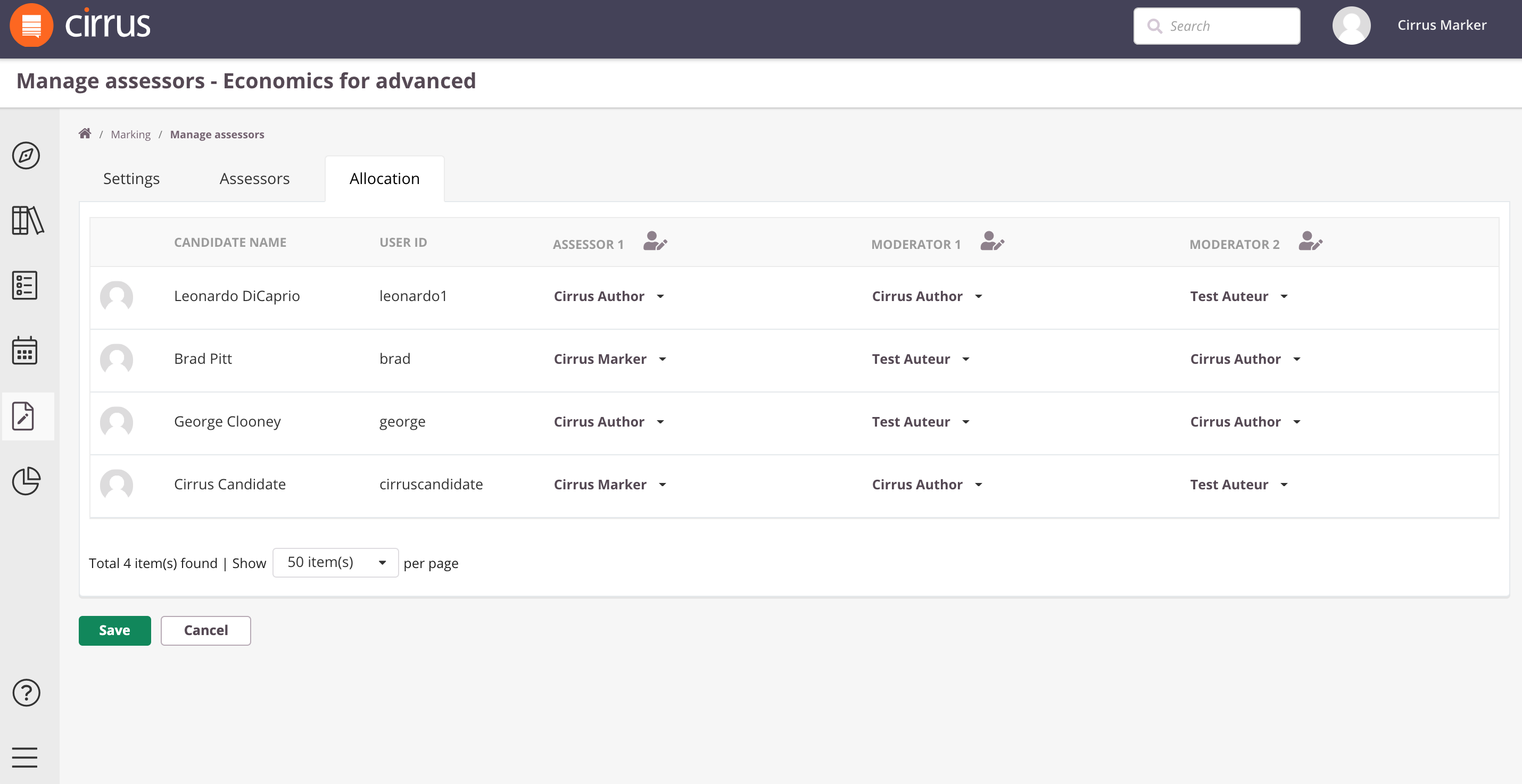
Allocation per candidate/Item
Select the Assessor/Moderator using the dropdown in the appropriate column.
Bulk assign
Use 'automatic allocation' to assign assessors / moderators in bulk to all candidates.
Random bulk assign
Use 'randomly'. This will lead to an even distribution over the assessors available.