

The Score distribution dashboard gives coordinators and markers a single view of how a schedule's scores spread, alongside reliability metrics and one-click access to rescoring. Use this article to find the dashboard, read each section, and grant marker access.
Where to find it
- Coordinators open Coordinator > [schedule title] > Score distribution (next to the Overview tab).
- Markers open Assess > [schedule title] > Score distribution, if the role permission is granted.
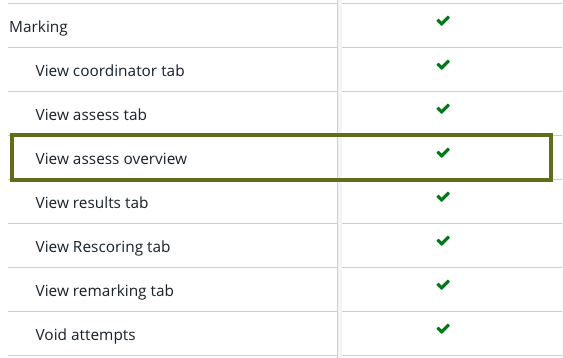
The Score distribution tab is available to Coordinators by default. For Markers, an administrator must grant the View Assess overview permission under Admin > Roles.
What the dashboard shows
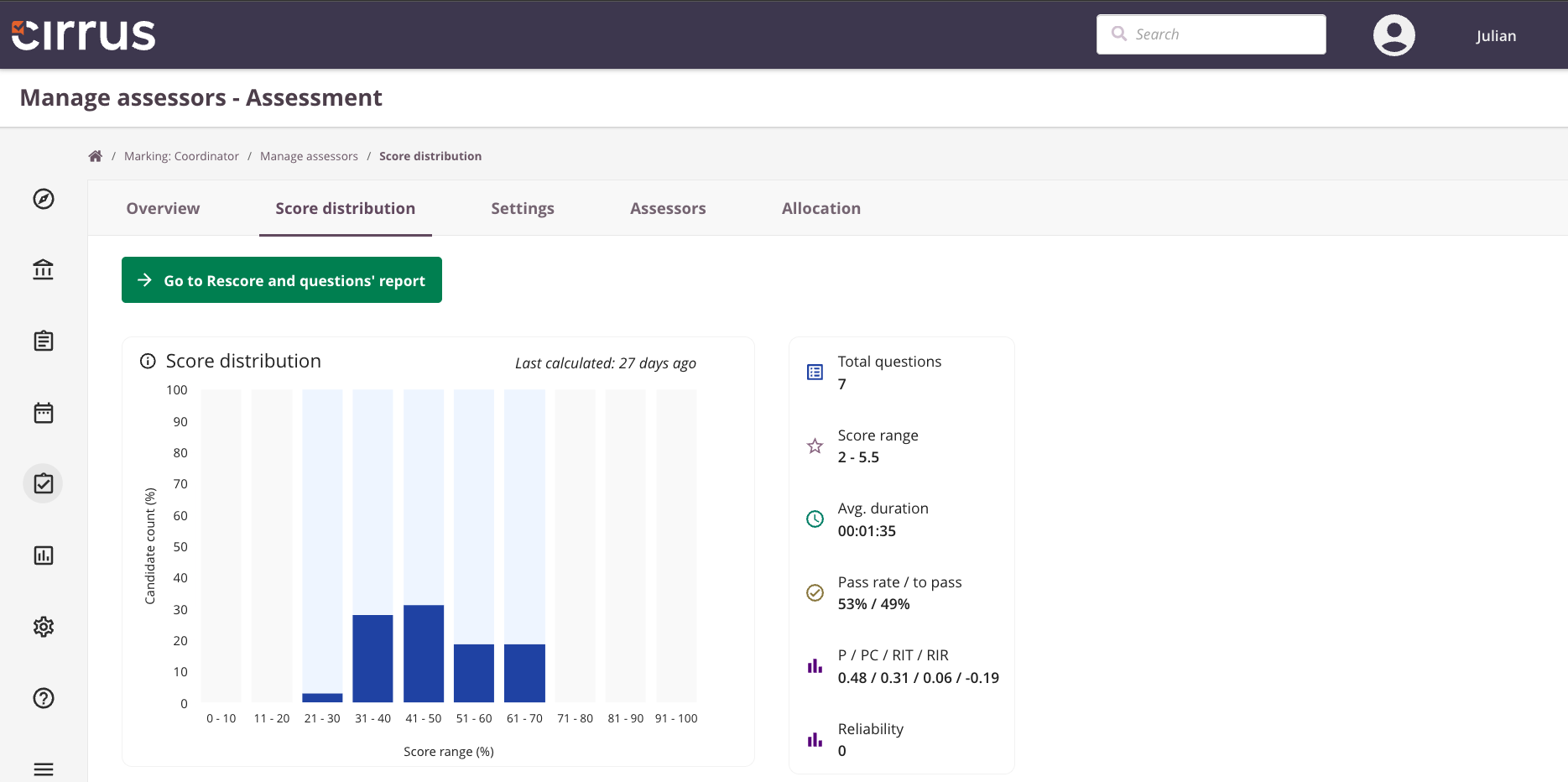
The dashboard combines a few elements:
- Score distribution chart showing how candidate scores spread across the schedule.
- Headline metrics: total questions, score range, average duration, pass rate.
- Reliability indicators: P, PC, RIT, and RIR.
- Direct links to the rescoring and question-report pages for the same schedule.
Headline metrics
- Total questions in the assessment.
- Score range of the scored submissions.
- Average duration taken by candidates to complete the exam.
- Pass rate as a percentage of submissions that passed.
Reliability indicators
- P value for question difficulty.
- PC for the probability-correct estimate.
- RIT for item-test correlation.
- RIR for item-rest correlation.
See Statistics: RIT and RIR values for the maths behind these metrics.
Refresh interval
Score distribution updates every 10 minutes. The dashboard shows a timestamp of the last refresh so you know how fresh the data is.
Score distribution calculations include scores that have been submitted. Drafts and in-progress marking are excluded. As markers submit, the next refresh picks them up.
Take action from the dashboard
The Go to rescore and Question report buttons take you directly to the rescoring page and the question-report page for the schedule. The buttons are permission-gated:
- Go to rescore appears if your role has the rescoring permission.
- Question report appears for users who can already view question reports.