

To ensure the final score is fair, valid, and reliable, up to three moderation rounds can be added to a marking workflow. This allows one or more moderators to review some or all scripts based on rules set up by the coordinator.
This article covers:
- The Role of the Moderator in Cirrus
- Setting Up Moderation Rounds
- How to Moderate in Cirrus
- Bulk Moderation: Moderating Multiple Candidates or Items
The role of the moderator in Cirrus
A moderator in the marking process ensures accuracy, fairness, and consistency by:
- Quality Assurance: Checking and maintaining consistent marking standards.
- Standardisation: Aligning markers' understanding through meetings and feedback.
- Dispute Resolution: Resolving marking disputes and queries.
- Training and Support: Providing training and ongoing guidance to markers.
- Monitoring: Keeping the marking process on schedule and reporting on quality.
- Feedback Improvement: Collecting feedback for process improvements.
- Annotation Review: Ensuring annotations and feedback are clear and constructive.
- Score Review: Verifying scores for accuracy, particularly for candidates near the pass mark.
In Cirrus, one or more moderation rounds can be added to a schedule to verify that assessor scoring was fair, valid, and reliable.
Setting up moderation rounds
In some cases, the moderator is also the coordinator in Cirrus. The coordinator ensures that candidates and items are allocated correctly.
One of the setup steps is adding moderation rounds when configuring the marking workflow.
Step 1: add a moderation round
- Go to the Coordinator section and select the schedule to configure.
- Click Settings.
- Click Add Moderation Round. Up to three moderation rounds can be added.
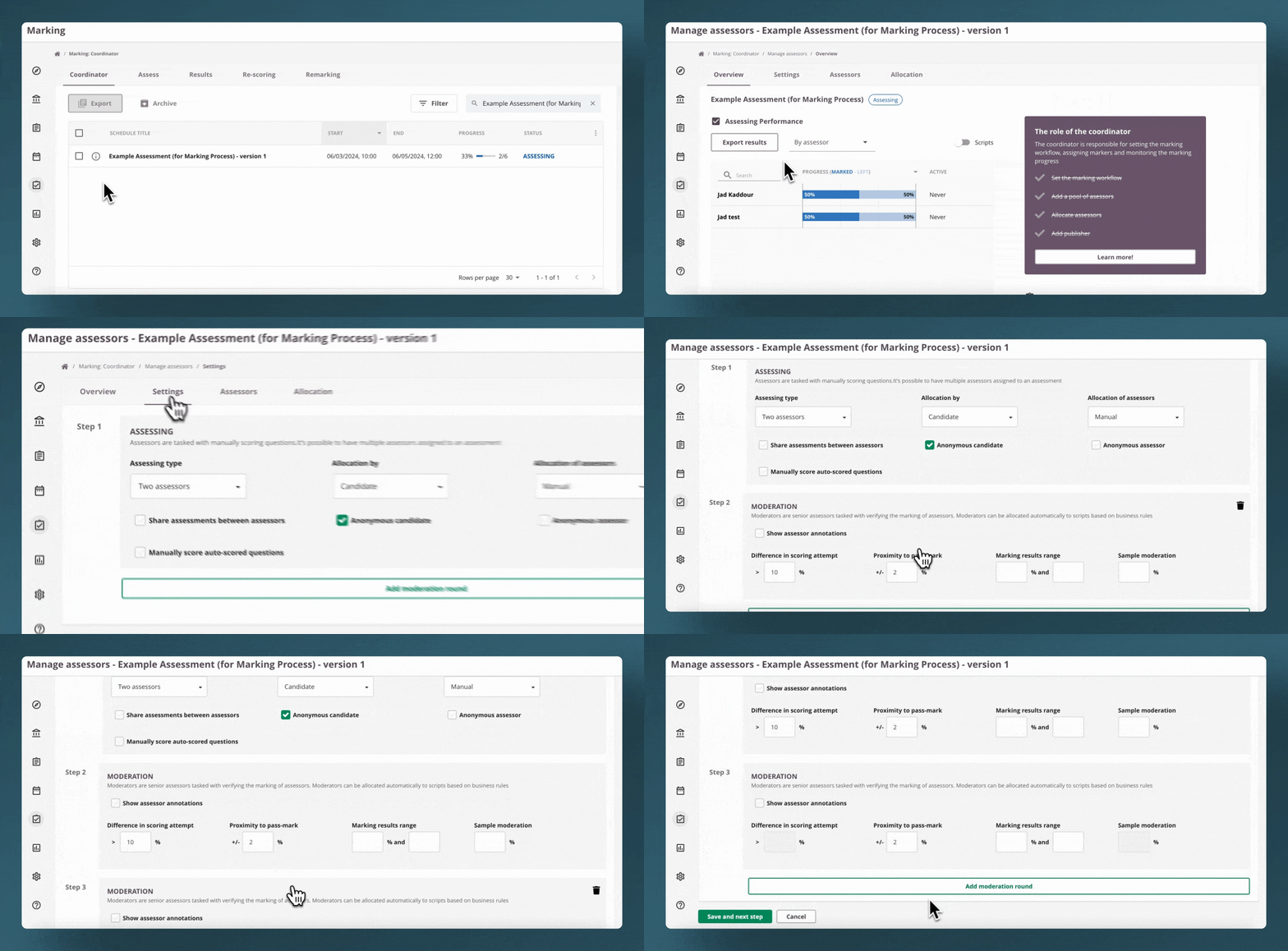
Step 2: set up moderation triggers
- Difference in scoring attempt: Applies to the Two Assessors workflow type only. If the scores from two assessors deviate significantly, this trigger ensures a moderator reviews those scripts.

- Proximity to pass mark: When a candidate's score falls within a defined percentage of the pass mark, a moderator reviews and determines the final grade. Set this percentage to ensure candidates near the pass/fail boundary receive a thorough evaluation.
- Marking result range: Allows coordinators to define a score range requiring moderator review. The range can be set from 0% to 100%.
- Sample moderation: Randomly selects scripts for moderation based on a specified percentage.
- Show Assessor Annotations: When enabled, the moderator can view annotations from the assessor(s).
How to moderate using Cirrus
If you are set up as a Moderator for a schedule:
- Go to Marking → To be Assessed.
- Locate the assessment with the status Needs moderation.
- Select the schedule and click a candidate's name.
- Review the overview, which shows the questions.
- Click Needs Assessment next to the first question requiring moderation.
- The Essay Marking page opens. This is identical for both assessors and moderators.
The moderator's score overrides the assessor's score.
Bulk moderation: moderating multiple candidates or items
In some cases the moderator selects which submitted exams to moderate — for example, to pick a random sample or to check the top, bottom, and middle scores awarded by markers.
To use bulk moderation:
- Set the moderation trigger to review all scripts by setting the proximity to pass mark to 100%.
- The moderator sees all submitted and marked exams.
- The moderator selects the scripts to moderate individually and processes them first.
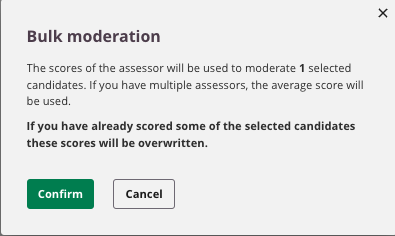
- The moderator selects the remaining candidates and clicks Bulk Moderate.
A new window opens showing the number of candidates selected for bulk moderation.
Tips for bulk moderation
- The window shows which scores will be used depending on whether there is one or two assessors.
- If a candidate was already manually moderated, a warning will appear.
- Multiple assessors with no moderator: If a scheduled assessment has no pre-appointed moderator and two assessors score differently, the average of both scores is used.
In moderation rounds, the final score is based on the most recent score provided by the moderator.