

This article describes how to access all Proctorio recordings in Cirrus via the Gradebook.
Once the exam is submitted, Proctorio's AI engine automatically reviews all recordings for suspicious behaviour and calculates the likelihood of academic misconduct.
The outcome is displayed in the Proctorio Gradebook.
The Gradebook in 10 seconds
Proctorio flags candidates who may have cheated. The higher the percentage, the higher the probability of misconduct.
Review these recordings to confirm or dismiss a suspicion. Proctorio's video player highlights moments when suspicious behaviour occurred, so you can quickly navigate to relevant points.
Using the Proctorio Gradebook
- The Proctorio Gradebook lists individual exam results by Suspicion Score on a red, yellow, and green scale — based on settings defined by the exam administrator — to highlight attempts requiring review.
- Flagged behaviours are determined by the predetermined behaviour settings and severity thresholds set by the exam administrator within the Gradebook.
- Each flagged behaviour generates an automated Incident Log entry. The exam administrator can add comments and notes to the Incident Log.
- The Gradebook also provides internet speed and connectivity data throughout the exam attempt, so the administrator can see whether this affected the candidate's ability to submit successfully.
- The log can be accessed from within the assessment platform and exported by authorised representatives as a PDF document.
How to access the Gradebook via Cirrus
All recordings for candidates who took a particular exam are available in the Proctorio Gradebook.
Once a candidate has finished an exam, it may take up to five minutes for recordings to render.
There are three ways to access the Proctorio Gradebook.
Option 1: invigilation screen
Step 1: Identify a proctored schedule
Look for the camera icon to identify a proctored schedule. This icon indicates that Proctorio is in use and that recordings are available.
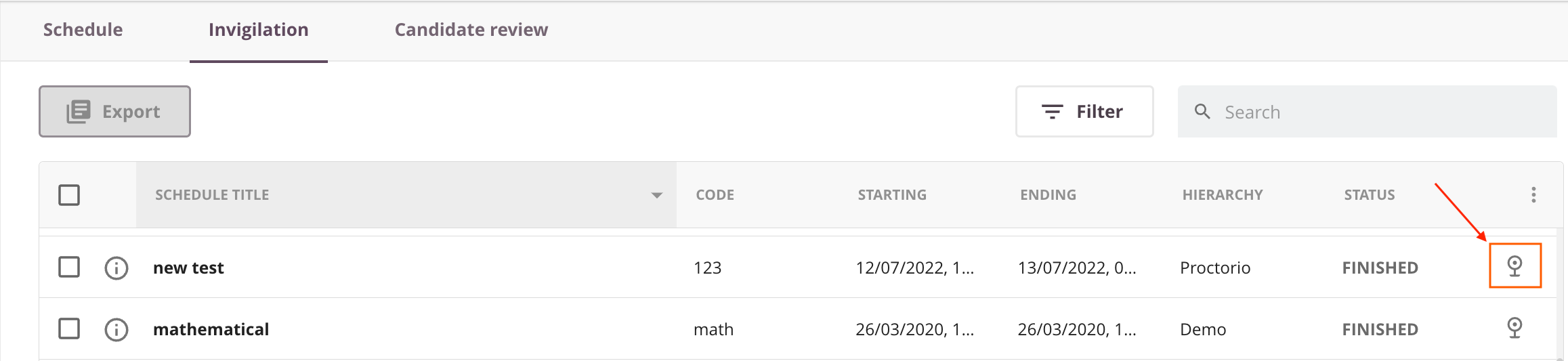
Step 2: Navigate to proctored recordings
- Go to the Delivering tab.
- Select Invigilation.
- Click the schedule to review.
- Click View Proctored Recordings.
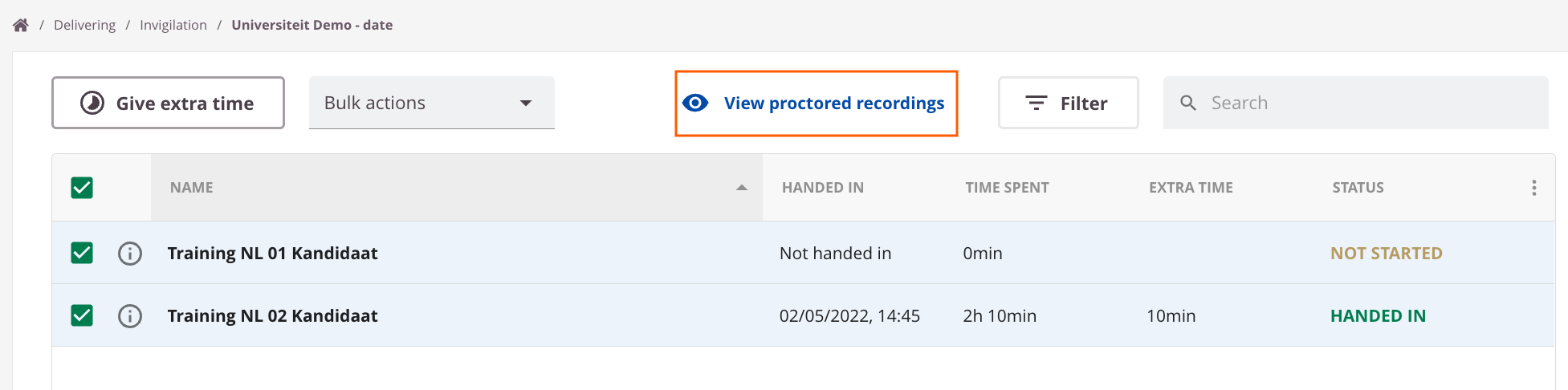
Option 2: Marking > results tab
With Site Role → General → View proctored recordings enabled, the Gradebook is accessible from the Results tab in Marking.
This can be used as a final check before publishing results. In cases of suspected fraud or cheating, the attempt can be voided before publication.

Option 3: Reports > results
With Site Role → General → View proctored recordings enabled, users with access to Reports have two additional options:
A. When the results filter is set to Schedule, an extra button appears at the top (similar to the Results tab) to view the Gradebook.
B. When the results filter is set to Assessment, a small eye icon appears on the right when hovering over a candidate.