
Cirrus integrates with Schoolyear, a secure exam environment that locks down the candidate's device for the duration of the test. When Schoolyear is enabled, candidates launch their exam through the Schoolyear application instead of a normal browser tab, and invigilators monitor the session from the Schoolyear dashboard.
Schoolyear is only available if it has been enabled for your environment. If you do not see the options described below, contact your Cirrus contact person.
Setting up Schoolyear
Enable Schoolyear on the assessment
Schoolyear is switched on at assessment level.
- Open the assessment.
- Go to Options > Security.
- Switch on Schoolyear.
- Save the assessment.
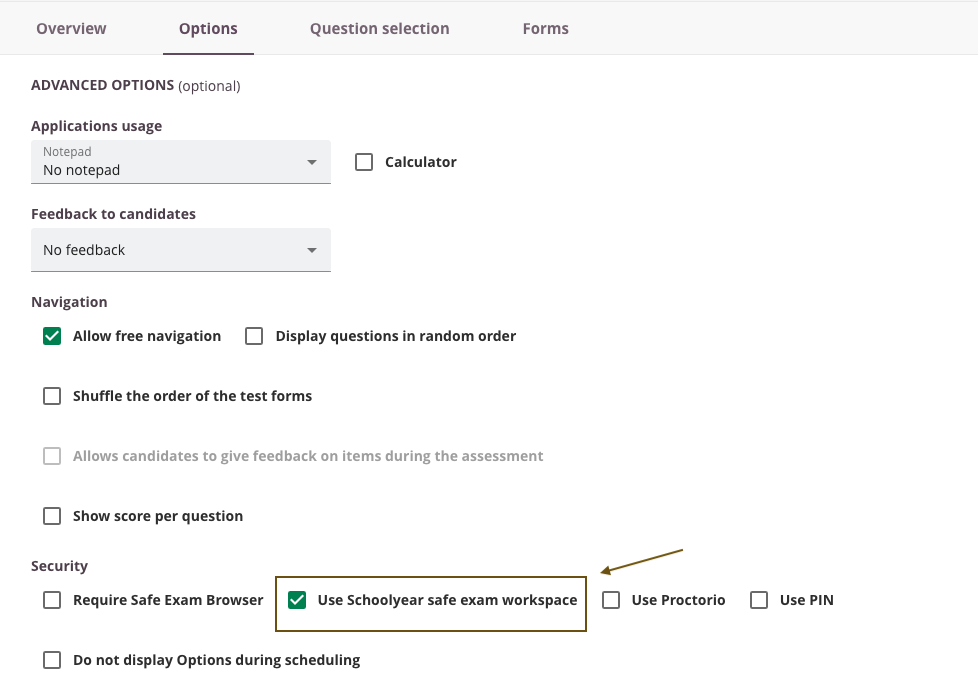
Every schedule created from this assessment uses Schoolyear.
Open the Schoolyear settings
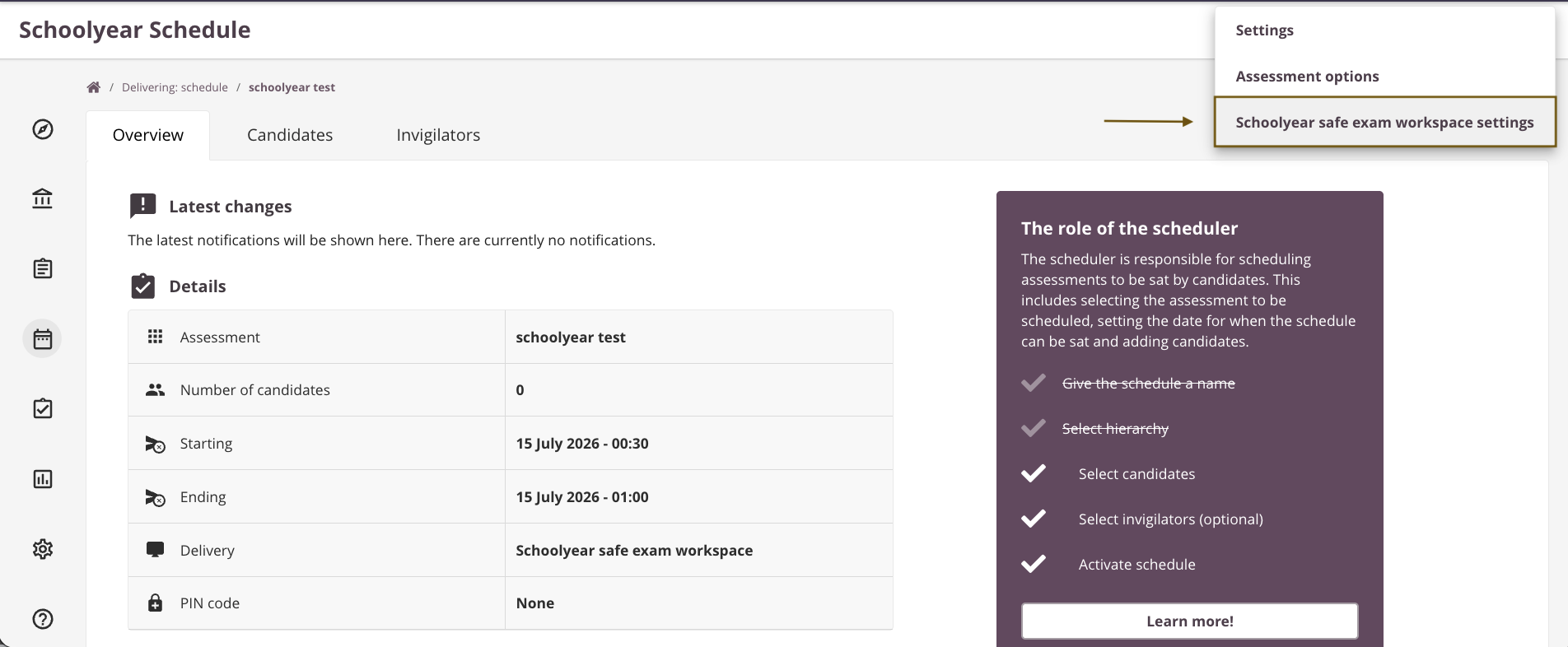
Schoolyear-specific settings are opened from the schedule.
- Go to a schedule that uses Schoolyear.
- Click the three dots in the top right corner.
- Select Schoolyear settings.
You are taken to the Schoolyear settings, where you configure how the secure environment behaves during the exam. for more information about the settings widget: Adjusting settings (Settings widget)
Recognise a schedule that uses Schoolyear
Schedules that use Schoolyear are marked with an icon. Hover over it to see a tooltip confirming that Schoolyear is in use.
.png)
Schoolyear dashboard
- Open Delivery
- Open the "Proctoring" tab
- Open the desired schedule
- Select the dashboard button to open the Schoolyear Dashboard.
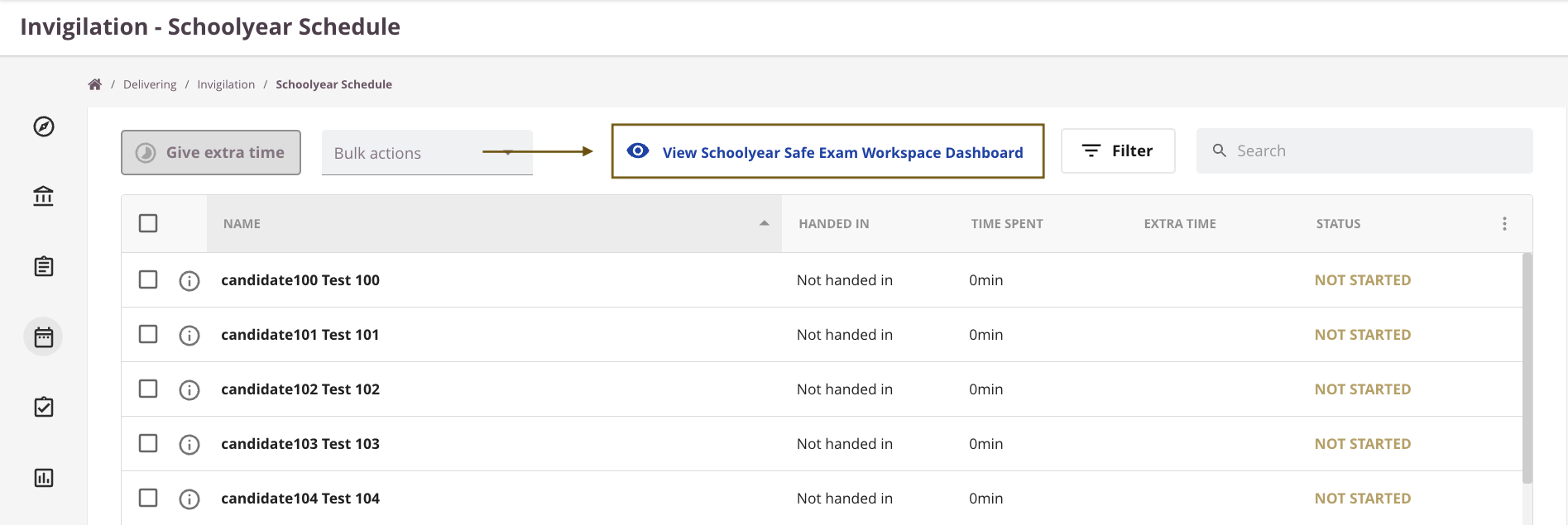
Explanation about the Schoolyear dashboard and all functionalities can be found in the following articles: Frequently asked questions about the dashboard and Functionalities in the dashboard.
Required permission
To see the Schoolyear options, the user's role must have View proctored recording switched on.
- Go to Admin > Roles.
- Open the relevant role.
- Switch on View proctored recording.
- Save.
Starting a test as a candidate
Candidates start their Schoolyear exam directly from Cirrus. Schoolyear maintains the step-by-step instructions, including installation and the device check:
Starting a Test from Cirrus Assessment (Schoolyear help centre)