
This guide explains how to import users via the Admin panel using an Excel (.xlsx) source file.
Before you start
This guide presumes you are familiar with the Cirrus system and have at least successfully covered our basic training and Sys-Admin training.
Supplies for importing users
Before you start, make sure you have this covered:
- User management access granted via Admin > Roles > Site Administration > Manage users.
- Defined Roles in Cirrus matching your organisations needs.
- Defined the correct Hierarchy-structure in Cirrus for your organisations needs.
Roles and Hierarchy will be assigned to your users upon importing, which will ensure candidates get access to the correct high-stakes assessment content for example.
Setting up your Excel file
Setting up an Excel source file to import users is very straightforward, especially when you use our example file for importing users.
USERIMPORT-TEMPLATE(2024).xlsx
Based on this file anyone within your organisation can make a good source-file in Excel. Some information is required, other information is optional. Keep the following in mind:
- A max of 2000 users per excel import is allowed
- UserName and UserID need to have unique values in your source file.
- The username is used at the unique identifier in Cirrus. Also see our FAQ.
- Required (mandatory) information: First Name, Last Name, Username, Email, UserID
- Optional fields: Password, Sub-hierarchy,Region, Timezone
- Optional fields - leave empty in your file if not used: extra time (yes,no), percentage extra time (number) Synchronisation Key.
- Fields to be set upon importing: Role, Start Hierarchy
- Please make sure there are no (trailing) spaces in any field except for First Name and Last name.
Use clear headers
A good descriptive header is indispensable for importing from Excel.
Upon import you will need to map the columns in your Excel to the appropriate fields in the system using the header text of each column. It will make the selection of the correct column a lot easier in the import users screen. To perform the actual import in Cirrus you need to be a system administrator in Cirrus.
An email address is required for each imported user, this can be used to send notifications on scheduled exams for your candidates. However: you can use the same email for multiple users of you choose to. For example: "noreply@your.org".
[Example of an user import file in Excel:]
Import users via Excel guide
- Login als System Administrator
- Go to the Admin panel > Users
- Click on the Import Users button
- Select your Excel (.xlsx) file and click ‘OK’
- The Import User window appears
- Map the required fields to the appropriate column using the drop-downs
Time zone
Imported users will be assigned to the timezone as defined at the time of import under Admin > Regional Settings > TimeZone.
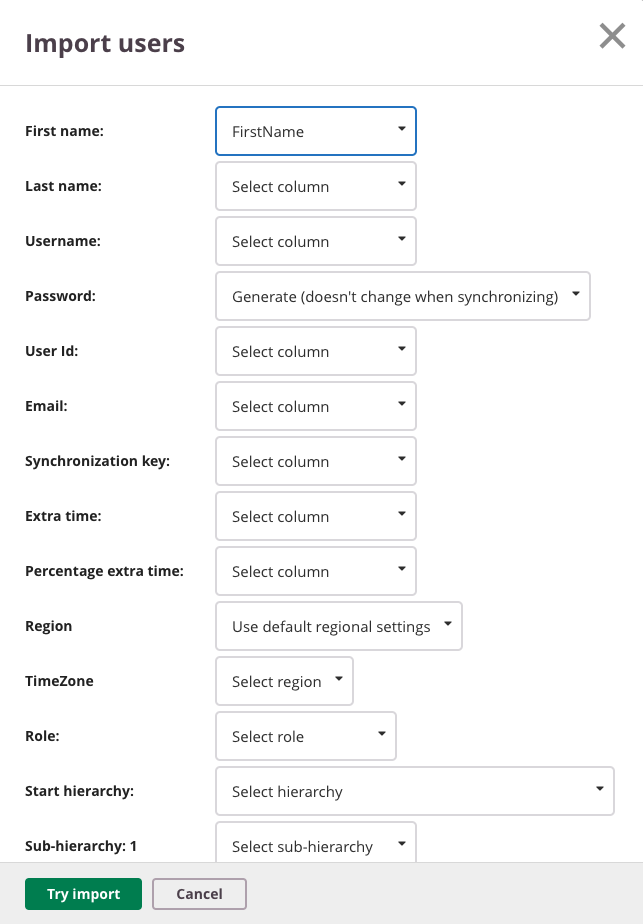
- Click ‘Try Import’
- You will see a screen telling you if your import file will lead to the expected successful result:
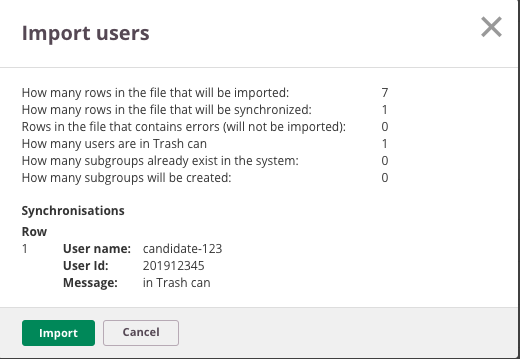
The Feedback before Import users screen shows you:
- How many rows in the file that will be imported
- How many rows in the file that will be synchronised
- How many rows in the file that contain errors
- Errors: will show the first 15 rows containing errors such as "User ID: This value is already in use" or "Username: spaces not allowed"
- Synchronisation: shows a list Username and UserID of the first 15 rows containing users already in the system that will be synchronised upon import.
- Hit "Cancel" if you need to correct your import file if needed.
- Click "Import" to perform the actual import of your users.
FAQ on userimport in Cirrus
Q: What happens when a user already exists?
A: If a user already exists, information will be amended. Keep the following in mind:
- Username: needs to be unique, meaning that if it exist the user will be amended. If it does not: a new user will be created.
- Role: this is set upon import. Any unique user can only have one rol. So if a user exists their role will be overwritten.
- Group memberships: these will be amended if the user already exists.
- Sub-hierarchies: these will be created if they do not yet exist. (UI does not give a warning on this)
- Password: different password > if a user exists he will get the new password.
- Some examples:
- User with same username - different ID - changed first and last name => User is synchronised (updated). ID is updated, First and Last names are updated.
- User different username - same ID - changed first and last name => Import contains errors (User ID : This value is already in use) User is not updated.
- User with same ID - same username - changed first and last name => User is synchronised (updated). First and Last names are updated.
Q: I imported user and the system says they got synced, but I do not see them under Admin > Users?
A: Your users are in Admin > Trash Can. Please ask an administrator to restore them and check their settings.
Q: What is the unique identifier for a user?
A: Users have two identifiers that are used to prevent duplicates in the system: Username and User ID. Each of these is unique to the specific user, the combination of these values identify the user.
Q: How can I check for duplicate users in Cirrus?
A: Currently this feature is on our Roadmap - we cannot yet say when it will be delivered.
Q: What if there are duplicate data in the source file? Why do I get an error upon trying to import?
A: Users need to have an unique Username and User ID. Each of these is unique to the specific user, the combination of these three values identify the user.
This means that if one of these values is already used, you will get an error upon import. If you use the unique combination, you can update the user: the information will be amended.
Q: Can I filter users after import? Can I search for users after importing to double check my results? What fields can I search users on?
A: Yes, currently you can search for users on First Name and Last Name. We will expand this functionality in the future.
Q: What is Sub-level-1 for?
A: In specific cases you can add Sub-Levels to your user import. Please contact us if you want more information on this.
Q: If I do not set a password in the Excel file, what happens upon import?
A: A random password will be generated, only an administrator will be able to reset the password. Please note that users will not get an email upon creation of their account.
Q: What if I want to import additional information about my users that is not in the import window?
A: You can manually add this information per user. Go to Admin > Users> Find User > Edit. Alternatively you can contact us about using our API for automated synchronisation.
Q: What if I run an import with different values? What if I import an existing user with a new role?
A: FirstName, LastName and Password can be overwritten using an import with the unique combination to identify existing users. If you import the same user with a different Role, the old role will be fully overwritten. Users are not allowed two roles at the same time in Cirrus.
Q: If I delete a user manually, it ends up in the trash can. What if I re-import this user?
A: The deleted user will go to the Trash Can for 30 days. This information can only be retrieved by an user who has access to this functionality or a Cirrus support engineer. If a deleted user is in the import source-file, it will still synchronise. In other words: the importer will synchronise the deleted user but is only accessible through official channels.
Q: What if I'm working in multiple timezones?
A: Per excel import it is possible to set the region/timezone. If you have multiple timezones, you need to use different excel imports.
Q: What error-logging is available?
A: You get a summary through the UI. If there are any errors, it will show which line has the error. See 'Feedback before Import users screen' in this article.
Q: I am getting an error message, for example "Email: Please enter a valid email address"
A: Make sure that there are no (trailing) spaces in your import file for Username, Email, ID and Password.