
This article covers all aspects of Collections: how to add them and how to use them in the exam creation process.
The Library is the home for all your items. Items are organised into Collections (also referred to as item banks).
For example, collections can be created by subject area, question type, learning objective, and so on.
This article covers:
- Your collection overview
- How to add a collection
- How to use a collection
Your collection overview
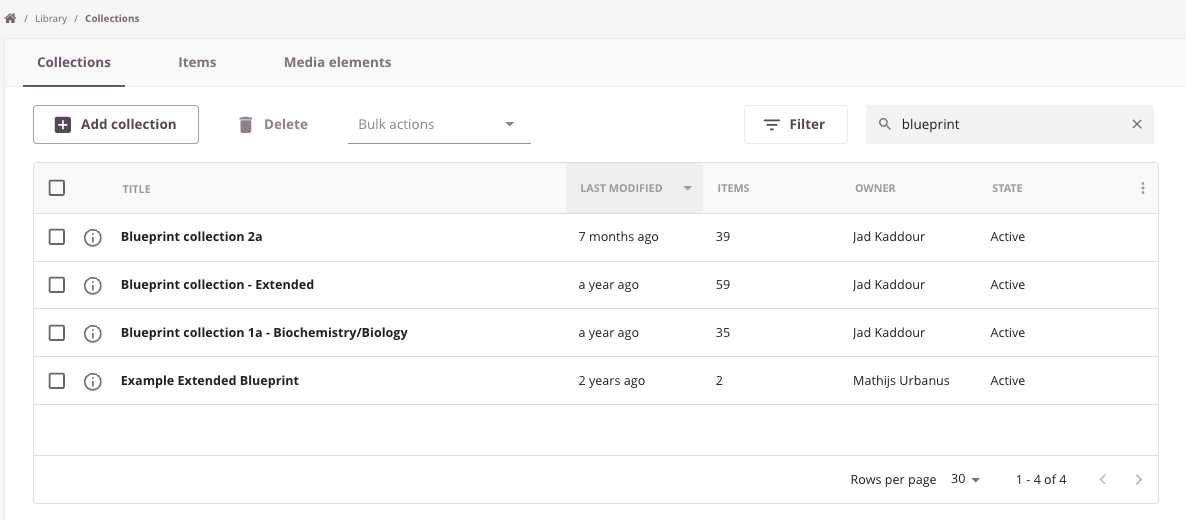
In the collection overview:
- All your collections and those shared with you are listed. Click a collection to open it.
- Use the filter button to filter collections.
- Use the Collections action menu bar to Add, Delete, Archive, and Unarchive.
- View key information such as Title, Last Modified date, and number of questions per collection.
- Check the status of each collection.
Some actions depend on your Item and Collection role, which is configured under Admin → Roles → Collections by an administrator. Your role determines, for example, whether you can add or delete collections.
If you are unable to perform certain actions, consult a System Administrator.
How to add a new collection
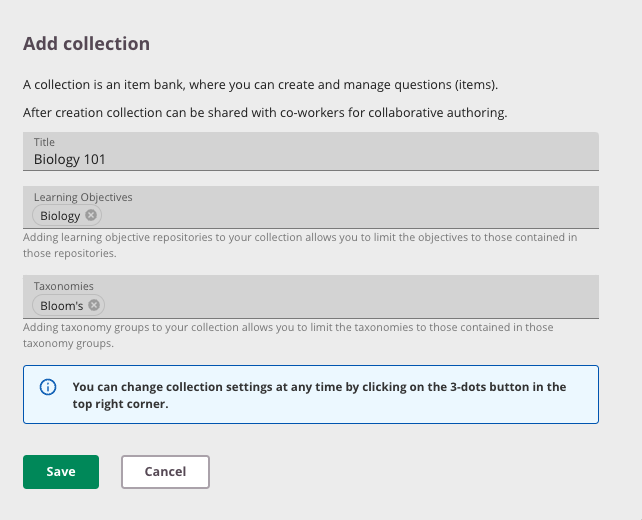
Click Add collection in the action menu bar to add a new collection.
A pop-up will open where you can enter a name and, optionally, associate a learning objective and taxonomy repository.
1. Title of your collection
Enter a title for the collection (maximum 100 characters). This field is mandatory.
2. Learning Objectives (LO)
Select a Learning Objective repository (optional) to associate with this collection. This ensures only relevant learning objectives are shown.
3. Select a Taxonomy
Select a Taxonomy category (optional) to associate with this collection. This ensures only taxonomies applicable to your subject are shown.
See Working with learning objectives and Working with Taxonomies for more information.
Changing LO and Taxonomies of your collection
The title, Learning Objective, and Taxonomy of a collection can be changed at any time.
Go to your collection, click the three-dot menu at the top right, and select Collection Settings.
Here you can also change the ItemID prefix for your collection. See also: "The Cirrus ItemID — a unique and user-friendly ID for each question."
Deleting and archiving collections
Select one or more collections and choose an option from the action menu bar:
- Deleting: Moves the collection to the trash. It can be restored within 30 days. After that period, all data is permanently deleted.
- Archiving: Archives the collection so the data is retained, but items in that collection will not appear when creating an assessment.
- Un-archiving: Restores the collection so items are available again when creating an assessment.
Note that some actions depend on your Item and Collection role, which is configured under Admin → Roles → Collections by an administrator.
How to use a collection
How you organise collections is entirely up to you. Collections can be structured by subject area, question type, learning objectives, school year, or any other criteria.
By default, collections are visible only to you unless you share them with colleagues.