
Feature Release: Enable Time-Based Automatic Schedule Data Deletion
We’ve introduced a new feature that allows you to automatically delete schedule data after a defined period. This helps you manage data retention, especially for schedules that no longer need to be stored.
Where to Find It
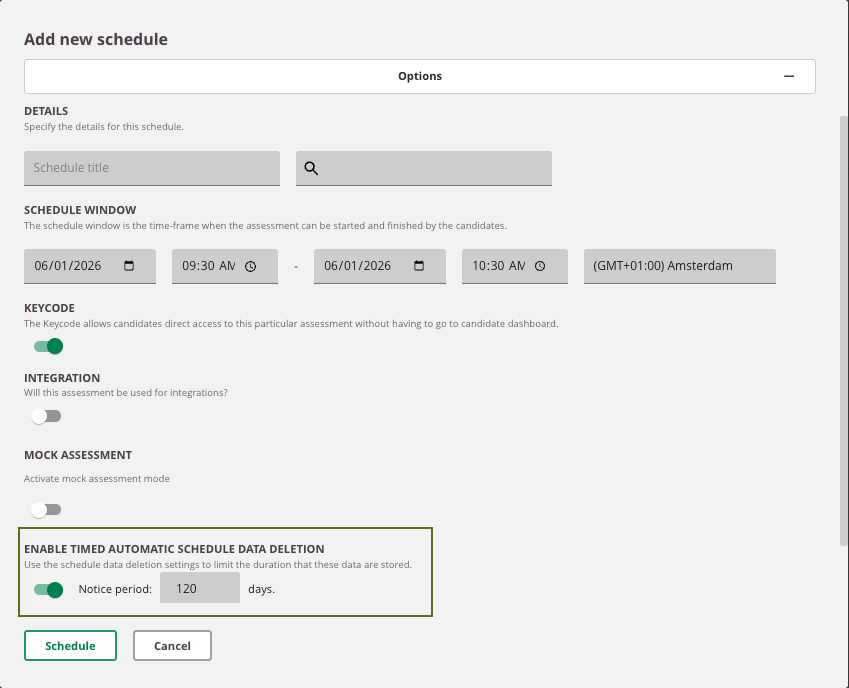
This option is available in the Schedule dialog under "Options" and can be enabled at any stage, whether you're creating a new schedule or editing an existing one.
There are no restrictions based on the schedule status: it can be Draft, Live, Ongoing, or Archived.
-
Look for the Enable Time-Based Automatic Deletion toggle.
-
Once enabled, you can set a notice period in days (default is 120 days).
How It Works
Once the schedule has ended, the system will begin counting down based on the set notice period, but only after two conditions are met:
Deletion Rules:
-
Schedule Window Has Ended: The notice period begins only after the schedule’s end date and time has passed.
-
All Results Must Be Published: If any exam results are still unpublished, the countdown will not begin.
Once the last result is published, the system starts counting down the notice period.
After the notice period expires, the schedule and its data will be permanently deleted, and will no longer be available in the Reports section.
Managing the Deletion Setting
- To cancel automatic deletion, simply return to the same schedule and toggle the feature off.
This will immediately stop the deletion countdown. - If you re-enable the toggle later, the notice period will restart from that point onward.
API Support
This feature is also supported via API. For more information, see the API Documentation.
Activation Required
This feature is not enabled by default. To use Time-Based Automatic Schedule Data Deletion, please contact the Cirrus Service Desk to have it activated for your account.