
You can integrate MS Office 365 into Cirrus, allowing candidates to work with an Excel, Word or PowerPoint template as part of their answer.
In this article you will learn:
- How to set up Office 365 on the admin side of Cirrus
- How to manage questions with Office 365
- Introduction to the candidate experience
Setting up Office 365
The Office 365 integration can be set up by following a series of steps. Customers can do this themselves with the help of their IT department.
Requirements:
- One MS Office 365 business account — one account is sufficient for the integration.
- Someone from your IT department to extract the required information from your MS account.
- The Office 365 integration article on the Developer platform will guide your IT department through extracting the required data from your Microsoft Office 365 business account.
- Someone with system admin rights on your Cirrus platform.
Your candidates do not need a personal Office 365 registration. They also do not need Word, Excel or PowerPoint installed on their computer.
How to manage questions with Office 365
Create item
The Office 365 integration allows candidates to work with an Excel, Word or PowerPoint template to answer a question. You can set this up using the File Upload item type.
How to create an Office 365 question is explained here.
Author Marking
How to mark an Office 365 question is explained here.
Previewing
You can use Anonymous sharing and previewing to simulate the candidate experience of Office 365 questions.
Candidate experience
Candidates do not need an Office 365 licence or account of their own. This is a key benefit of the integration.
It requires one Microsoft Office 365 business account to set up the entire integration in the admin section of Cirrus. See the File Response article for more information.
After candidates open an Office 365 question they will see:
- The question text
- Status of the Office file:
- Not Submitted
- Submitted
- The template file set up by the author
- Answer or Open button (depending on whether the file is already open)
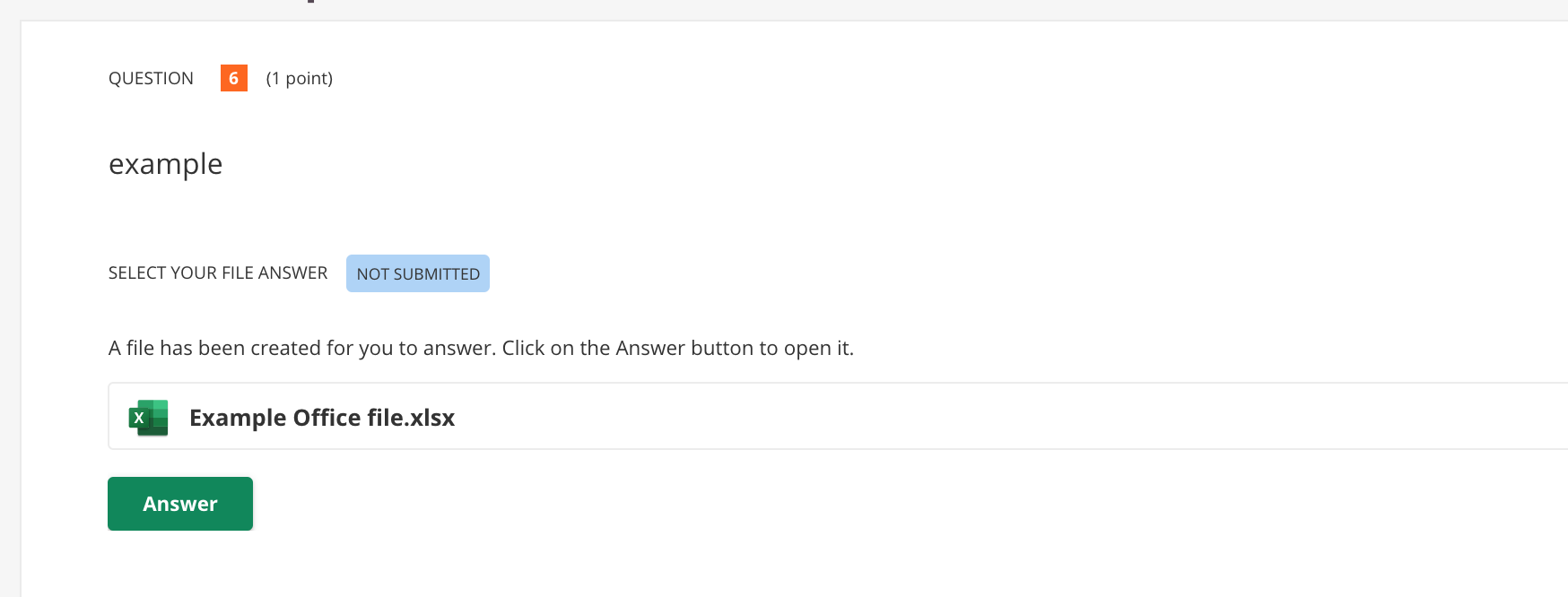
Clicking Answer/Open opens a new tab from the *.sharepoint.com domain, with a unique subdomain per customer.
Securing the Office 365 candidate environment
Disable user access to the Office store
- Sign in to the Microsoft 365 admin centre.
- Go to Settings > Org settings.
- Select User owned apps and services.
- Uncheck the option that allows users to access the Office Store.
- Save your changes.
This setup ensures candidates cannot install any add-ins during their exam session, maintaining a controlled environment.
Save and submit
Work in the Office file is saved automatically. Candidates can close and reopen the tab to continue.
Candidates submit their answer by clicking Next, which triggers a dialogue to save and submit.
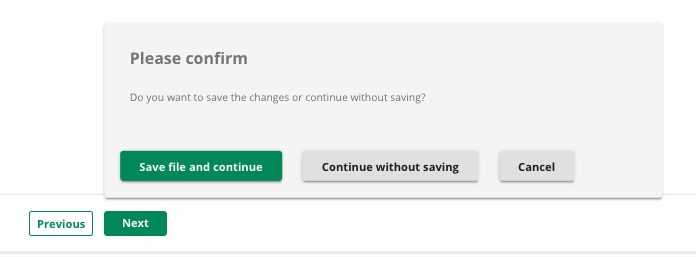
When free navigation is activated in the assessment options, candidates can return to the question, reopen the file and continue working on it.
Office bases its language setting on the browser language.
Office 365 opens in a new tab
The Office 365 integration uses one business account so that all candidates can use the integration without needing an individual Microsoft licence.
Because one shared business account is used, the integration cannot be embedded and will open in a new tab.
Lock down browsers
Office 365 files open in a new tab. To make this work with a lockdown browser, check the following settings.
-
Safe Exam Browser:
Ensure Block pop-up window is disabled. -
Proctorio:
Recommended settings:
Full screen: Disabled
New tabs: Links only
Close tabs: Enabled
This configuration allows Office files to open while blocking new tabs to other websites.
Proctorio does not control any other applications on the computer and will only control the browser you are working in.
Files storage
All files related to this integration (questions, candidate answers, previews) are stored on Microsoft's cloud storage service, OneDrive. Ensure you always have sufficient free space on your OneDrive account.
The root folder of your OneDrive will contain a folder called .cirrus. Inside you will find additional folders for different purposes:
- Templates
- Delivery
- Preview
- AnonymousPreview
Files are organised under these folders as follows:
.cirrus/
  templates/
    unique_guid/
      original-filename.docx
  delivery/
    unique_guid/
      draft/
        original-filename.docx
      submitted/
        original-filename.docx
  preview/
    --same as delivery--
  anonymousPreview/
    --same as delivery--
The unique GUIDs cannot be traced back to a specific answer in the Cirrus platform.
If the account is removed from Cirrus via the admin, all files must be removed from OneDrive by the customer.
When you delete questions in Cirrus while the integration is still active, Cirrus will automatically delete all related files.
Deleting files directly from OneDrive can result in losing questions and answers.
Error handling
Cirrus provides detailed error messages when technical issues occur with the integration, covering:
- Admin
- Candidate Delivery
- Item creation
- Marking
See the Office 365 troubleshooting article for further guidance.
Frequently asked questions
Q: Can Office 365 questions be auto-scored?
A: No, not currently.
Q: What happens if there is not enough space on OneDrive?
A: Candidate answers or questions will not be saved. Ensure there is sufficient space on OneDrive.
Q: What happens if the connection is lost while a candidate is working in a file?
A: The file cannot be opened or submitted until the connection is restored.
If a candidate had already started working in the file, a notification will appear informing them of the lost connection. The file is not editable while the connection is down.
When the connection is restored, the candidate can continue working on the template file, even if it was already open. Because Office 365 saves automatically at frequent intervals, no work will be lost.
Q: If a file is deleted from OneDrive, what happens when viewing candidate results?
A: An error will appear when attempting to open the file in Cirrus. We recommend not removing files from the .cirrus folder in OneDrive.
Q: What is the maximum file size for a template?
A: The maximum size is 4 MB. We recommend keeping the template as lean as possible to leave sufficient space for candidates to work in.
Q: How are Office files shown in reporting and marking audit?
A: The attached file is shown as an attachment, not embedded as in marking.
Q: We use the FTPS Server Add-on solution to export scripts. How will Office files be handled?
A: Office files are not included in the FTPS solution.